Workspaces
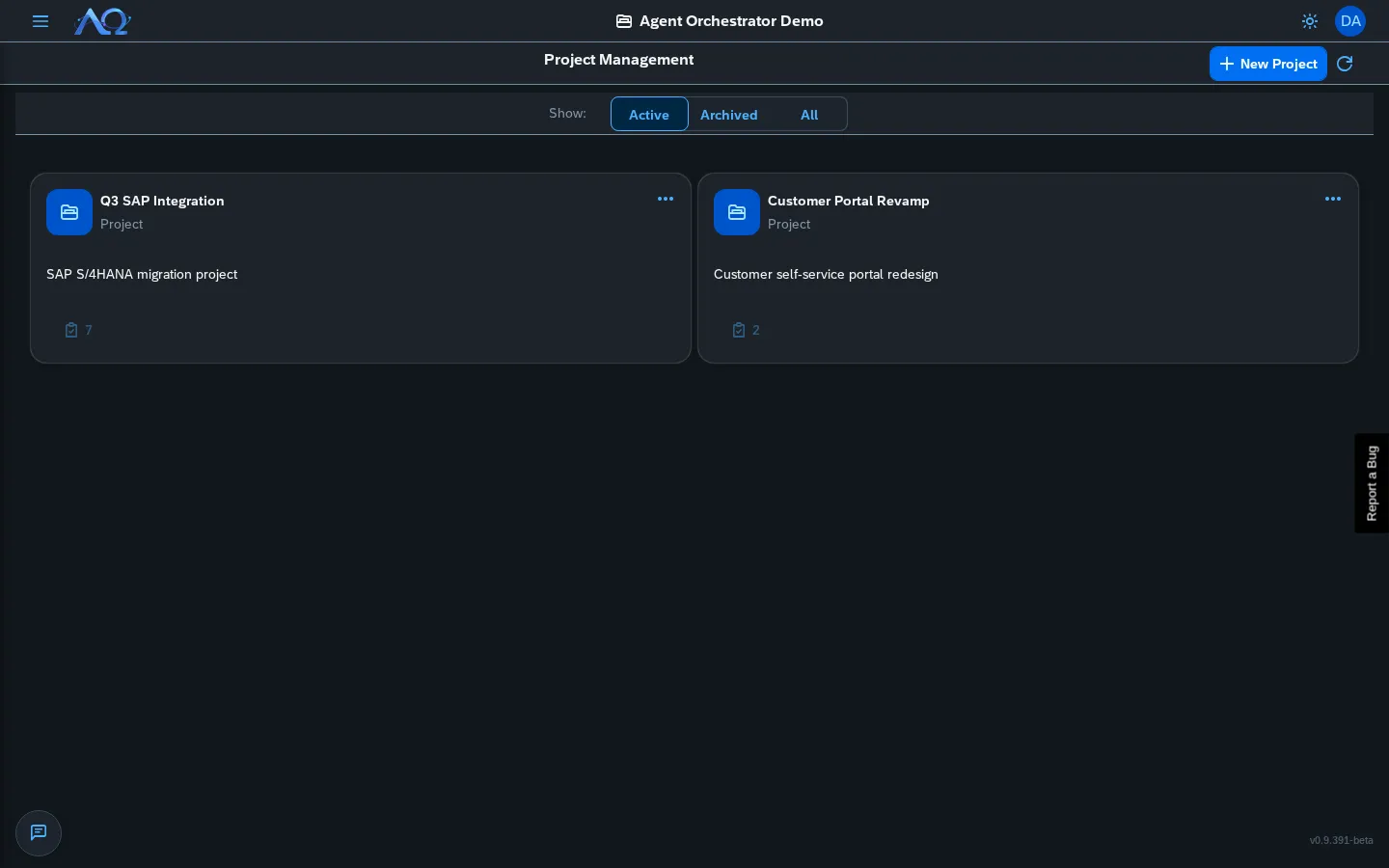
Workspaces are self-contained containers that isolate a team's Tasks, Agents, Skills, Projects, and members.
Workspaces are self-contained containers that isolate a team’s Tasks, Agents, Skills, Projects, and members. Think of a Workspace as a project space or team environment — everything you do in Agent Orchestrator happens within a Workspace.
Creating a Workspace
Only Administrators can create Workspaces:
- Open the Workspace switcher in the sidebar (top-left)
- Click Create Workspace
- Enter a name and optional description
- The creator becomes the first Administrator
Switching Workspaces
Click the Workspace name in the sidebar to open the switcher. Select any Workspace you’re a member of — the entire UI reloads with that Workspace’s data (Tasks, Agents, Projects, etc.).
Workspace Roles
| Role | Permissions |
|---|---|
| Administrator | Full access: manage members, create/delete Projects, configure Git targets, view Audit Log, Usage & Cost, customize labels, manage Workspace settings |
| Member | Create/view Tasks, assign to Agents/Squads, chat with agents, view Runs, use Skills, view Projects |
Roles are assigned per-Workspace — a user can be Admin in one Workspace and Member in another.
Managing Members
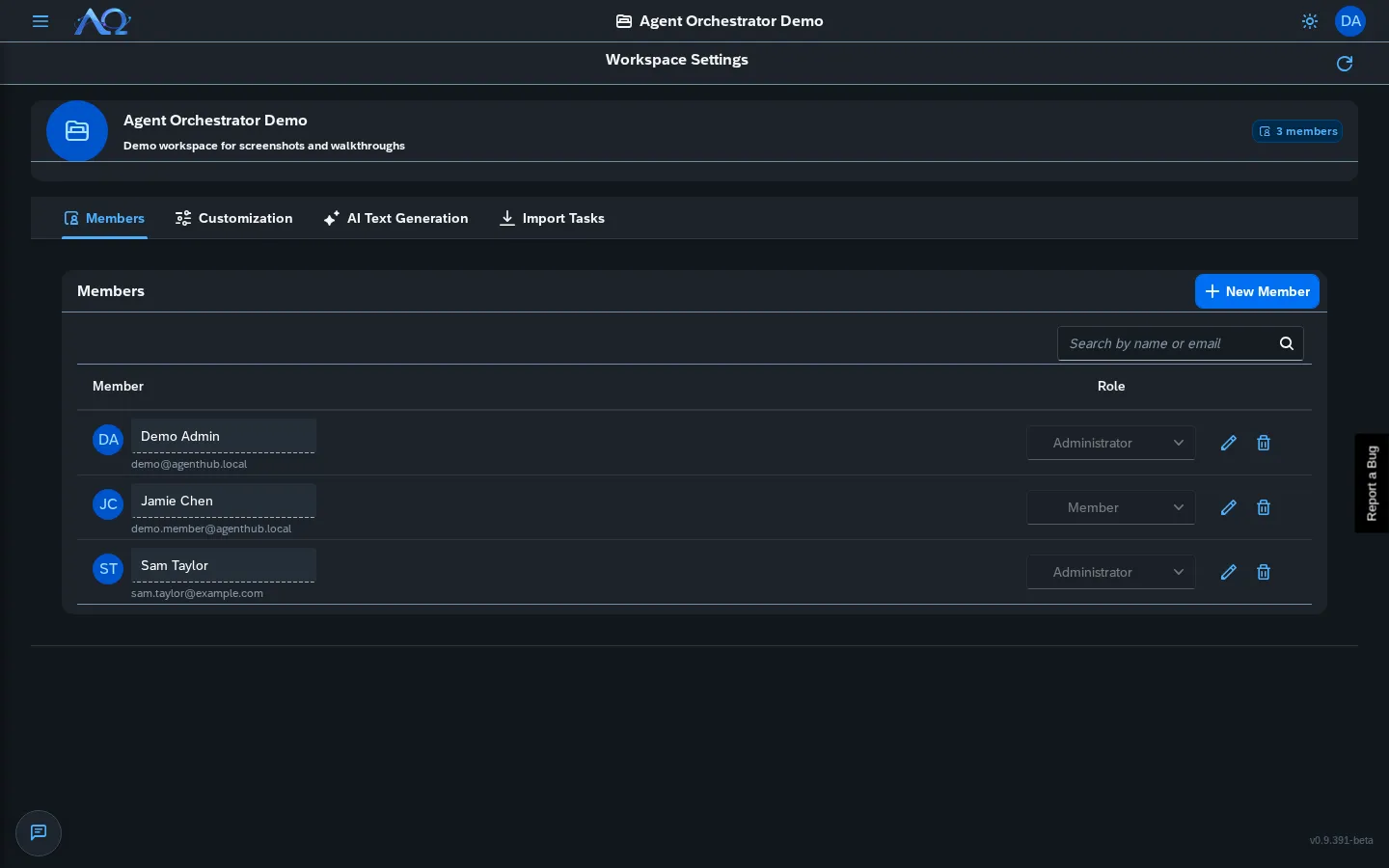
Administrators can manage members from Settings (sidebar) → Members tab:
- Invite existing users — Enter email, assign Role
- Invite new accounts — Creates account + adds to Workspace in one step
- Edit member — Click pencil icon to change display name or Role
- Remove member — Click trash icon (cannot remove yourself)
Workspace Label Customization
Administrators can customize label values used throughout the Workspace from Settings → Customization tab.
Task Types
Define custom task types beyond the built-in ones (Task, Bug, Improvement, Research):
- Add — Create new types with a key (slug), display label, and position
- Rename — Change display label (key stays immutable)
- Hide — Toggle built-in types off without deleting (creates a tombstone)
- Restore — Re-enable a hidden built-in type
The key is immutable — renaming only changes the display label, no Task data migration needed.
Board Columns
Rename the 7 Kanban column headers (Backlog, Ready, Running, Review, Blocked, Done, Archived). The column set is fixed — only display names are customizable.
Workspace Settings
From Settings (sidebar), Administrators can:
- General — Edit Workspace name/description
- Members — Invite, edit roles, remove members
- Customization — Task Types and Board Column labels (see above)
- AI Text Generation — API key, base URL and chat model used by Refine with AI on tasks. Anything left empty uses the instance’s configuration. The API key is write-only (it is never shown again once saved — leave the field empty to keep it, or use Remove key), and knowledge search is not affected. If you set your own base URL you must also set an API key here (any value works for gateways that need none); the instance’s key is never sent to it.
- Danger Zone — Delete Workspace (irreversible, requires confirmation)
Multi-Workspace Workflows
- Switch instantly — Sidebar switcher reloads all views
- Shared resources — Agents, Skills, and Runtimes are Workspace-scoped but can be copied/exported between Workspaces
- Isolation — No cross-Workspace data leakage; Audit Log, Usage & Cost, and Tasks are strictly per-Workspace
Recent Updates
- Per-Workspace AI configuration — Administrators can set the API key, base URL and model that Refine with AI uses
- Workspace Label Customization — Customize Task Types and Board Column names per workspace
- Multi-tenant Workspaces — Isolated containers for tasks, agents, skills, projects, members
- Workspace Membership & Roles — Administrator/Member roles, display name editing, invite flow