Task Board
The Task Board is a Kanban board — the central place where you create, assign, track, and complete Tasks.
The Task Board is a Kanban board — the central place where you create, assign, track, and complete Tasks.
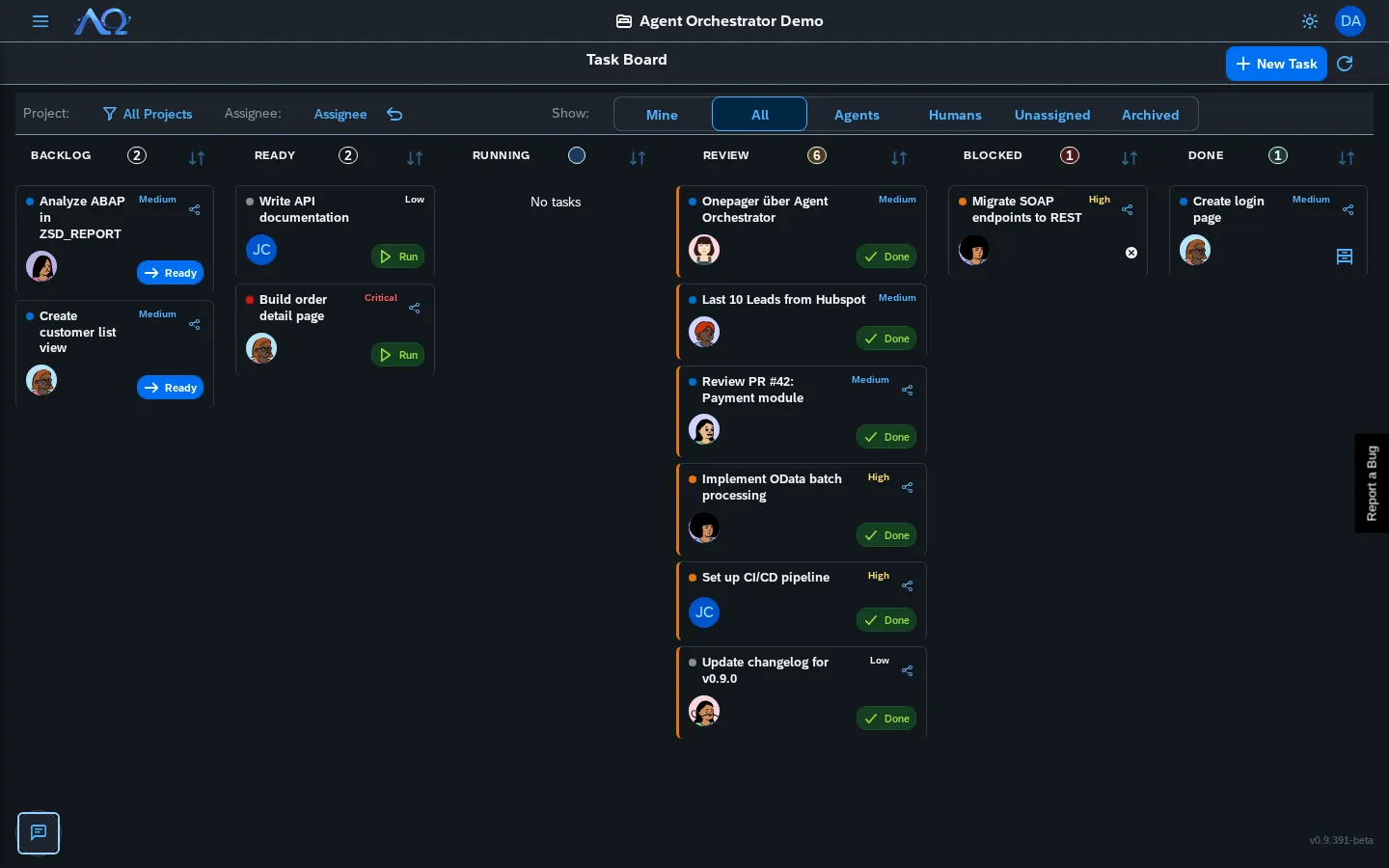
Task Statuses
A Task moves through these columns:
| Status | Description | Typical Transitions |
|---|---|---|
| Backlog | Created, not yet prioritized | → Ready |
| Ready | Queued, about to be worked on | → Running, → Backlog |
| Running | Actively being worked on (Agent or human) | → Review, → Blocked |
| Review | Work done, awaiting human review | → Done, → Running |
| Blocked | Stuck, waiting on something external | → Ready |
| Done | Complete | → (Archived via “Archive” button) |
| Archived | Hidden, cancelled/done tasks | → Backlog (via “Restore”) |
Drag-and-drop between columns — changes persist immediately with automatic rollback on failure.
Creating a Task
Click New Task (top-right of board) to open the creation dialog.
Desktop: Two-Column Form
Left Column:
- Title (required)
- Description — Markdown supported (toolbar: Bold, Italic, Link, Code, List)
- Goal / Acceptance Criteria — What “done” looks like
Right Column:
- Task Type — Task, Bug, Improvement, Research (customizable per Workspace)
- Priority — Low, Medium, High, Critical
- Project — Optional grouping label
- Assignee — Agent, Workspace Member, or Nobody
- Start Date / Due Date — Optional, independent
- Dependencies — Tasks that must complete first (multi-select)
- Watchers — Members notified on Review/Done/Failed (multi-select)
- Save Result to Knowledge — Auto-save agent output to agent’s personal knowledge folders
Mobile: 3-Step Wizard
On phones, the same fields are split into 3 steps with a step indicator.
Refine with AI
Refine (in the New Task and Edit Task dialogs) asks the AI to rewrite your description as a clear requirement and to derive a Goal / Acceptance Criteria text from the title and what you wrote. It only proposes text: review and edit it — nothing is saved until you click Create (or Save).
- In New Task, enter a Title first. Refine works on a draft Task in Backlog, which is removed again if you cancel the dialog.
- For an existing Task, use Refine with AI in the task header (on phones: ⋯ More). It opens the Edit dialog and runs the refinement.
- It uses the AI endpoint configured for your instance or Workspace (Workspace Settings → AI Text Generation). If none is configured, you are told so instead of getting a suggestion.
Templates
- Save as Template — Current form becomes a reusable template
- Start from Template — Pre-fill form from a saved template
Task Detail Dialog
Click any task card to open the detail dialog.
Header Bar
- Status — Current column (badge)
- Stop — Appears while an agent is working on the Task and stops its active Runs
- Chat / Files — Switch between the conversation and the Task’s files
- Share Task, Edit Task, Refine with AI, Delete — Icon buttons on desktop. On phones they are collected in one ⋯ More menu
Above the conversation sits the Task Brief (the description, collapsed by default) and, for Squad Tasks, the Execution Tree.
Properties Sidebar (Desktop)
Right sidebar with collapsible sections; click a row to change it:
- Organization — Assignee, Project, Task Type, Priority, Watchers
- Schedule — Dates (start and due), Recurrence
- Run — The latest Run, read-only rows for the MCPs, Skills and Secrets available to it (secret values are never shown), and the Save to knowledge setting
Dependencies are set in Edit Task (Depends on).
Chat Tab
Live conversation with the agent working on this task:
- Your messages — Right-aligned, blue
- Agent messages — Left-aligned, gray with avatar
- System messages — Centered, italic
- Copy message — Hover agent message → copy icon
- Long messages — Collapsed at 1200 chars, “Show more” toggle
- @mentions — Type
@in the message box to mention a Member, Agent or Squad. A mentioned Member can also get an email (when email is configured). Agents and Squads are tagged for context only — a mention never redirects the Run to someone else
Files Tab
All artifacts attached during the run, with icons by type (PDF, code, image, etc.). Click a file to open File Preview: images, PDFs and text or code files (code is syntax-highlighted) up to 2 MB, videos (MP4, WebM, MOV, M4V, OGV, MKV) of any size with the browser’s player, and Word (.docx), Excel (.xlsx, .xlsm, .xls) and PowerPoint (.pptx) files up to 25 MB as an approximate preview (layout and fonts can differ from the original; spreadsheets show the first 1,000 rows of each sheet as a plain table). Old .doc and .ppt files, a video the browser cannot play, and any larger or unsupported file show No preview available; Download saves any file.
Quick Status Moves
Each card shows one contextual action button:
- Backlog → “Ready” (blue)
- Ready → “Run” (green)
- Review → “Done” (green)
- Running → Stop (red) — stops the Task’s active Runs
- Blocked/Done → Priority icon only
Moving a Task out of Running — by dragging it or with Stop — also stops its active Runs.
Recurring Tasks
Tasks can recur daily/weekly/monthly with end conditions.
Setting Up Recurrence
- Open Task Detail → Properties sidebar → Recurrence section
- Enable Recurring switch
- Configure:
- Frequency — Daily, Weekly, Monthly
- Interval — Every N days/weeks/months
- Weekdays (weekly only) — Mon, Tue, etc.
- End Condition — Never / On Date / After N Completions
- Save — Task shows repeat badge on board
How It Works
- When a recurring task reaches Done, the backend creates the next occurrence
- Next task inherits: title, description, type, priority, project, labels, watchers, recurrence rule
- Not copied: Dependencies, attachments, chat history
- Cadence anchored on the completed task’s due date (early completion doesn’t pull dates forward)
- Overdue periods are skipped
Task Watchers
Watchers receive email notifications when a task reaches Review, Done, or Failed.
Adding Watchers
- Task Detail → Properties sidebar → Watchers row → click to open popover
- Edit Dialog → Watchers multi-select
- Creation Dialog → Watchers field
Notifications deep-link to the task: #/?task=<taskId>
Dependencies
Tasks can depend on other tasks. A task with unmet dependencies shows a visual indicator and cannot be moved to Running until dependencies are Done.
- Add — Task Detail → Dependencies popover or Edit Dialog
- Cycle prevention — Circular dependencies blocked
- Self-dependency — Blocked (task cannot depend on itself)
Copy Task ID
Hover a task card → click share-2 icon → copies full 36-char UUID to clipboard. Only shown for tasks in a Project.
Share Task
Task Detail → ⋯ More → Share Task → copies deep-link URL (#/?task=<id>) to clipboard.
Filters
Top toolbar:
- Project Filter — Show tasks from one Project
- Assignee Facet Filter — Multi-select: Agents and/or Members (OR’d)
- Show Tabs — All / Mine / Agents / Humans / Unassigned / Archived
- Mine — Tasks where you’re the creator (mutually exclusive with other tabs)
Recent Updates
- Drag-and-drop task board — Kanban flow with native HTML5 DnD, automatic rollback on failure
- Inline agent questions & permissions — Answer agent questions and permission requests directly in the task chat
- Chat continuity — Follow-up messages preserve context, resume previous conversations
- Chat with Agents — Persistent 1:1 chat with agents/squads via floating button
- Recurring tasks — Set daily/weekly/monthly recurrence with end conditions; auto-creates next occurrence on Done
- Improved task detail — Consolidated info bar, Task Brief card, collapsible long messages, Share Task
- Two-column task detail — Properties sidebar with quick-reclassify for Task Type/Priority, Watchers row
- Redesigned task creation — Task Type, Labels, Dependencies, Watchers, Goal/Acceptance Criteria, Save as Template
- Task watchers — Get email notifications when tasks reach Review/Done/Failed
- Comprehensive task edit — Edit all task fields including type, priority, dates, assignee, project, labels, watchers, dependencies