Getting Started
Agent Orchestrator is a governed platform for putting AI agents to work on real, trackable tasks.
Agent Orchestrator is a governed platform for putting AI agents to work on real, trackable tasks — with a human always able to see what’s happening and step in before anything risky happens.
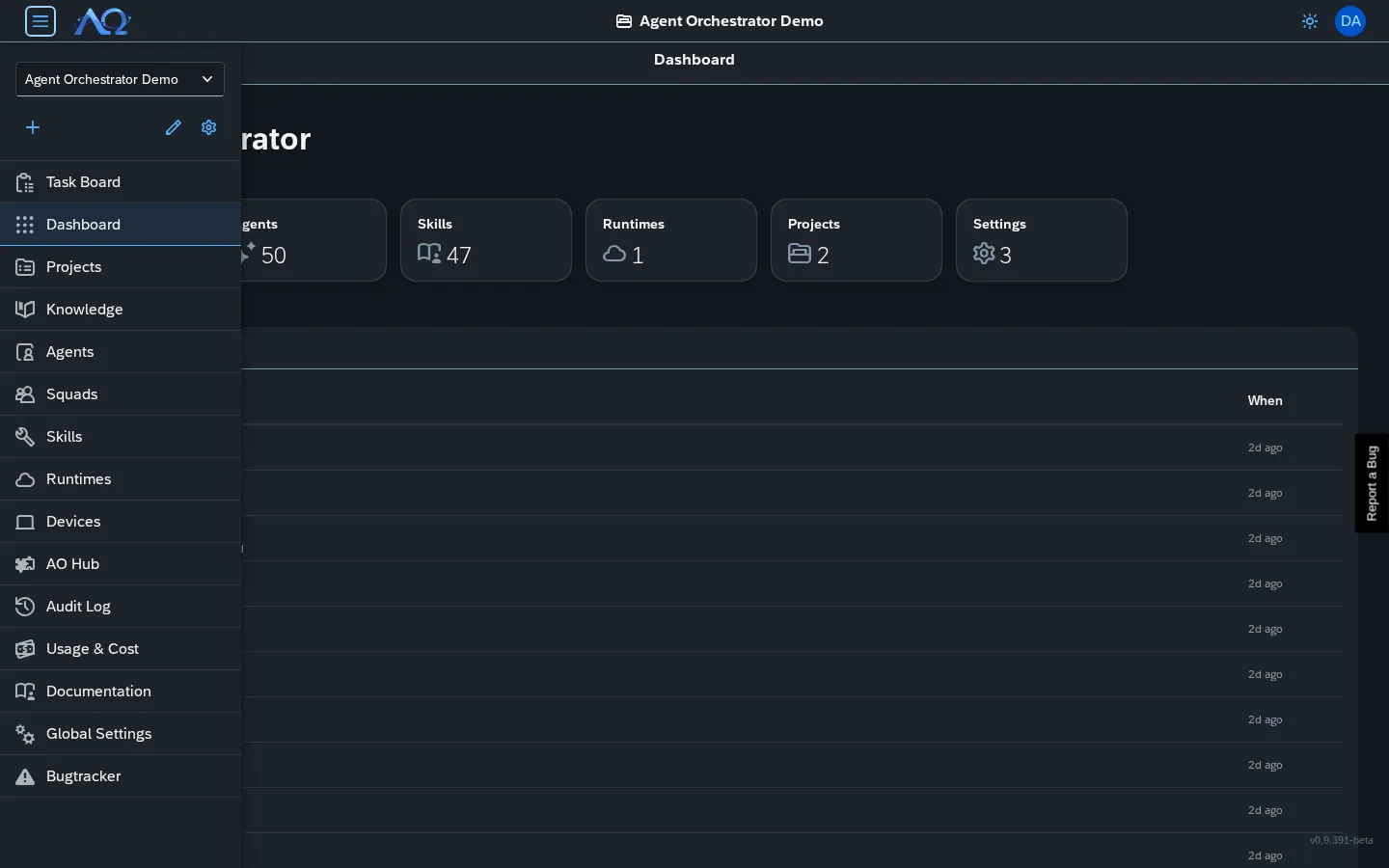
What Agent Orchestrator Does
- Tasks — Create work items (bug fixes, documents, analysis, generated code) and track them on a Kanban board
- Agents — Configure AI workers with custom instructions, models, permitted Skills, and MCP server connections
- Runs — Watch agents work in real time, chat with them mid-run, and review every action and artifact
- Governance — Any external action (git push, API call, file write) waits for explicit human approval
Video Walkthrough
A narrated product walkthrough is available: ▶ Watch the walkthrough (opens in a new tab).
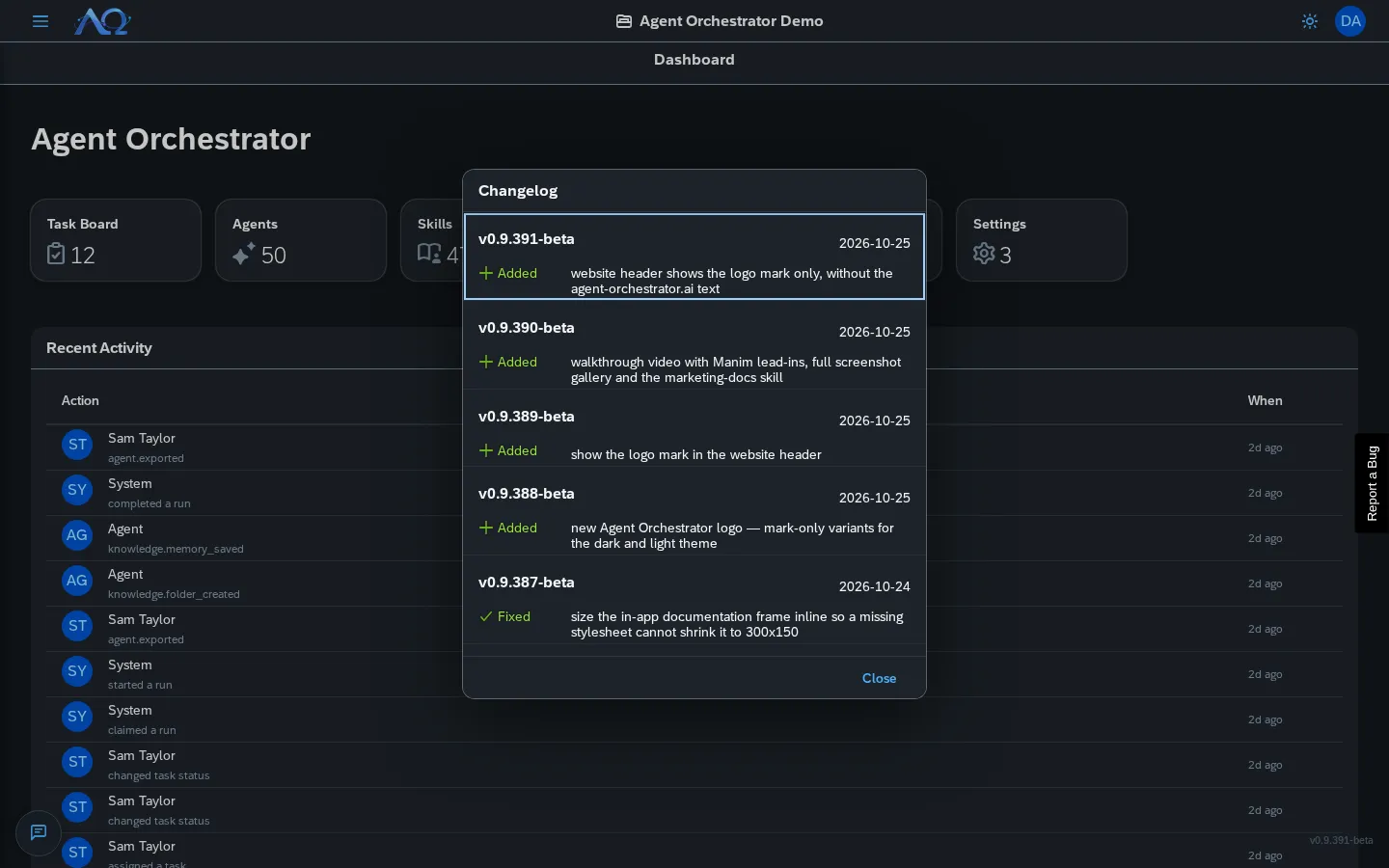
Logging In
Agent Orchestrator has native email/password authentication — no external dependencies required.
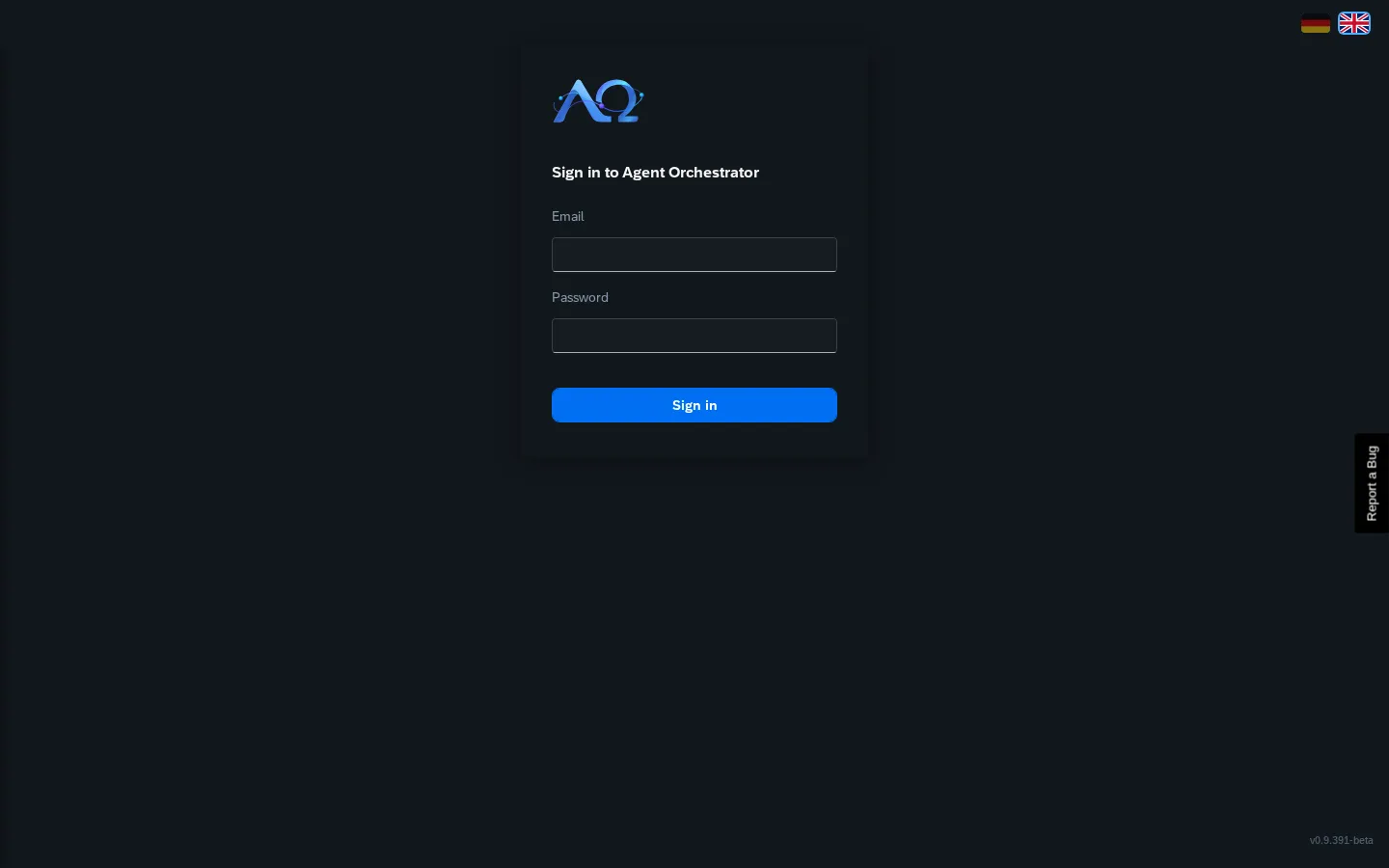
If your organization has configured Single Sign-On (OIDC), you’ll also see a “Log in with SSO” option. When SSO is enabled, the native “Change Password” option is hidden from the user menu.
On first launch with no accounts, you’ll be guided through a one-time setup: create your account and first Workspace in one step.
The Sidebar
The sidebar navigation is always visible. What you see depends on your Role, your edition and what your administrator has switched on:
| Page | Purpose | Who sees it |
|---|---|---|
| Task Board | Kanban board where work happens | All members |
| Dashboard | Counts and recent activity | All members |
| Projects | Grouping labels for related Tasks | All members |
| Knowledge | Document folders agents can search | All members (can be switched off) |
| Agents | Configure and manage AI workers | Administrators |
| Squads | Team-based agent delegations | Administrators (can be switched off) |
| Skills | Reusable, versioned agent knowledge | All members |
| Runtimes | Daemon processes that execute Runs | All members |
| Devices | Desktop clients agents may use, and what they may ask of them | All members |
| AO Hub | Catalog of MCP servers | All members (can be switched off) |
| Audit Log | Complete record of every action | Administrators, Enterprise edition |
| Usage & Cost | Token usage and cost reporting | Administrators, Enterprise edition (can be switched off) |
| Documentation | This page | All members |
| Global Settings | Settings for the whole installation | System Administrators, Enterprise edition |
| Bugtracker | Instance-wide bug reports | All members |
Chat with Agents is not a sidebar page: open it with the floating chat button at the bottom left (see Chat). The Community edition does not show the pages marked Enterprise edition.
The sidebar also has a Workspace switcher (Administrator-only) for creating and switching between Workspaces, and a Settings button for managing members and Roles.
Dashboard
The Dashboard shows six tiles — Task Board (open tasks), Agents (active agents), Skills (published skills), Runtimes (healthy runtimes), Projects (active projects) and Settings (Workspace members) — and a Recent Activity list with the action and when it happened. Click a tile to open that page.
Your Profile
Open the user menu in the header and choose My Profile:
- Photo — Upload photo or Remove photo
- About me — A short text about yourself (Markdown is supported). Agents see this text in every Run’s instructions, so they know who they are working with. Write only what you are happy for agents to read.
The same menu has Change Password (hidden when your organization uses Single Sign-On) and Logout.
The menu also has a Language row with two flags, German and English. Click a flag to switch the whole app — texts, dates, e-mail notifications, most messages from the server and this documentation — to that language; the page reloads. The choice is saved on your account, so it follows you to other browsers. Before you sign in, the same two flags are in the top-right corner of the login page. If you never choose, the app uses your browser’s language (German or English; English otherwise).
Workspaces
Everything happens inside a Workspace — a self-contained container for Tasks, Agents, Skills, Projects, and members. You can belong to multiple Workspaces and switch between them from the sidebar.
See Workspaces for details.
Quick Start Checklist
- Log in — Use native auth or SSO
- Create a Workspace — Administrator-only from sidebar switcher
- Invite team members — Settings → Members → New Member
- Configure an Agent — Agents → New Agent → set system prompt, model, skills
- Register a Runtime — Runtimes → Register Runtime → run the daemon
- Create a Task — Task Board → New Task → assign to your Agent
- Watch it run — Click the task → watch the live chat and execution log
Where to Go Next
- Workspaces — Creating one, inviting members, understanding Roles, label customization
- Task Board — Kanban board, task creation, recurring tasks, watchers, dependencies
- Agents — Configuring AI workers, Squads, Context Manager, Knowledge/Memory
- Squads — Team-based agent delegations with leader/member orchestration
- Skills — Skill registry, native delivery, versioning, Agent View
- MCP Servers — Connecting agents to external tools, AO MCP, Memory MCP
- Chat — Persistent 1:1 conversations with agents and squads
- Knowledge — Document folders agents can search
- Devices — Pair your computer so agents can ask it for help, under your policy
- AO Hub — Catalog of MCP servers
- Projects & Git Delivery — Git targets, auto-approve, merge to default
- Runtimes & Audit Log — Runtime health, available models, audit trails
- Usage & Cost — Token tracking, breakdowns, product analytics
- Global Settings — Branding, Single Sign-On, email, tokens (System Administrators)
- Bugtracker — Instance-wide bug reports
- Daemon Installation — Register runtimes, opencode, WUD auto-update
Recent Updates
- Agent Orchestrator Platform — Governed AI agent orchestration with human-in-the-loop approval
- Native Authentication — Email/password login, one-time setup for first account+workspace
- SSO Login — Optional OIDC Single Sign-On with admin approval for new sign-ups
- In-App Documentation — Self-building TOC from markdown files, live updates
- Agent Squads — Team-based delegations with leader and members
- Chat with Agents — Persistent floating chat panel for 1:1 conversations
- Bugtracker — Instance-wide bug reports from PostHog surveys